Overview:
A Company-Level API Key is an authentication credential that allows external applications to access company data and functions through API integrations.
Authorized users can generate an API key, assign permissions, review or modify access rights, regenerate the key, and revoke it when it is no longer needed.
Managing the API key and its permissions helps control which company data and functions an external application can access.
Plan Availability: FREE across all N3 AI Accounting subscription plans, including Free Trial. Standard API integration is available without additional API access fees
Scenario:
A company plans to connect its accounting system to an external application through an API integration. An authorized user generates a Company-Level API Key and assigns the permissions required by the external application.
Later, the integration requirements change. The user updates the assigned permissions or regenerates the API key. If the integration is discontinued, the user revokes the key to invalidate the credential.
Note: This is an Illustrative Scenario
Procedure:
A. Generate a Company-Level API Key
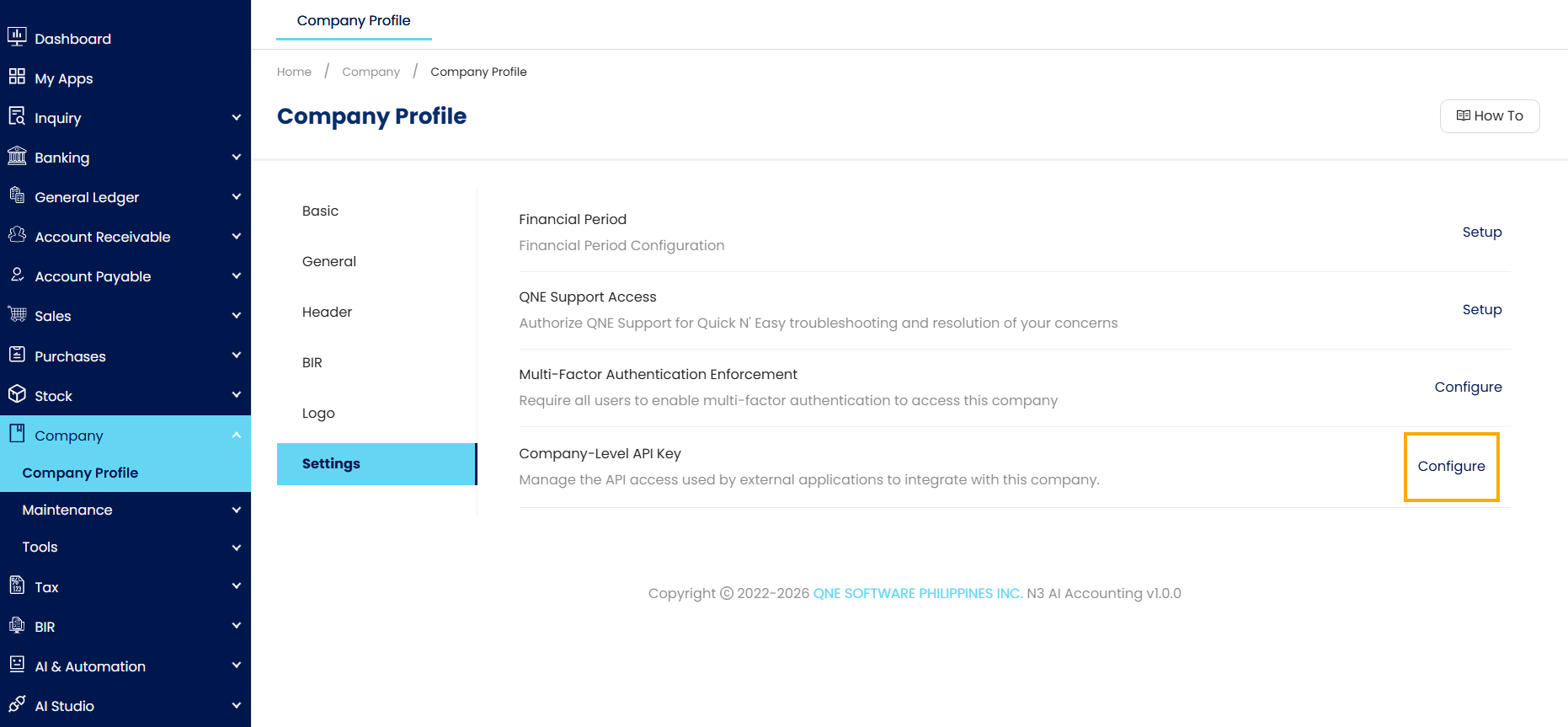
Navigate to Company > Company Profile > Settings.
Locate Company-Level API Key and click Configure.
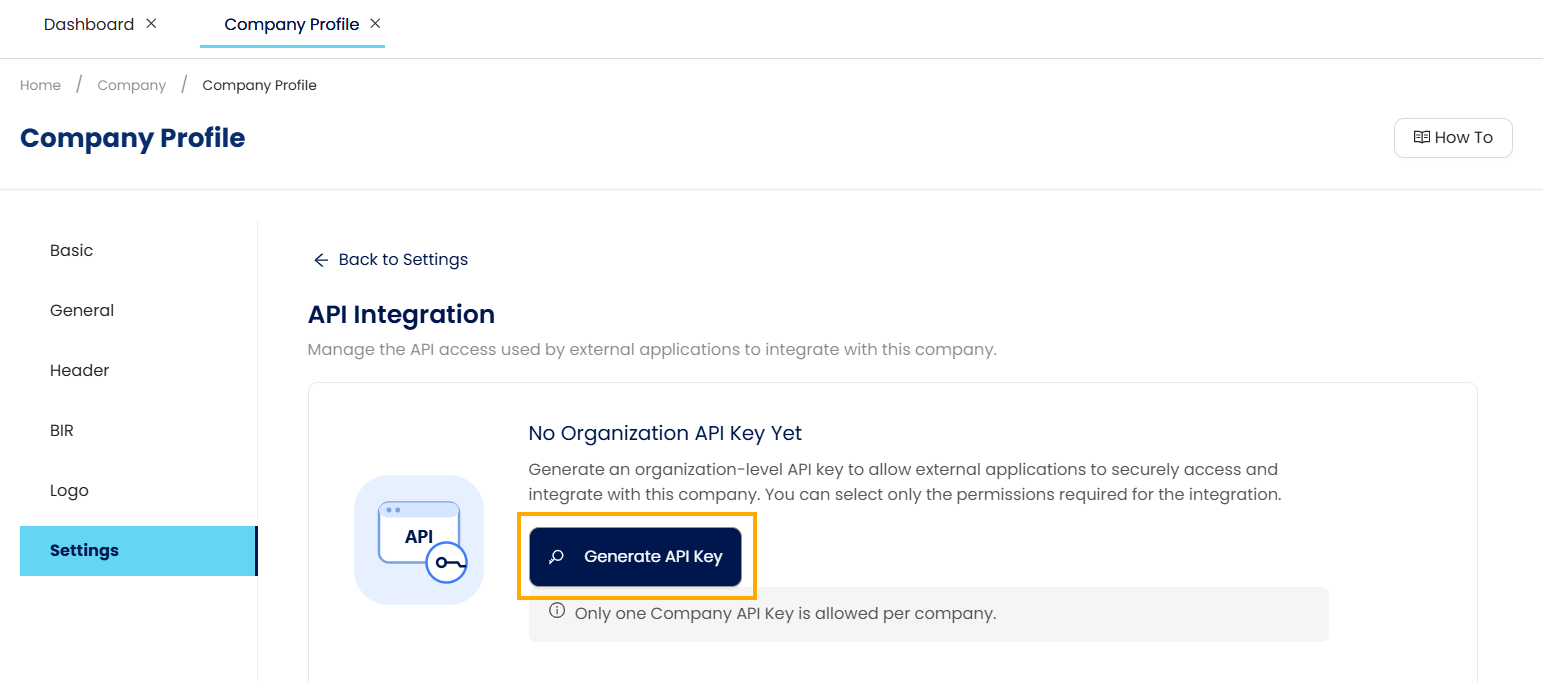
On the API Integration page, click Generate API Key.
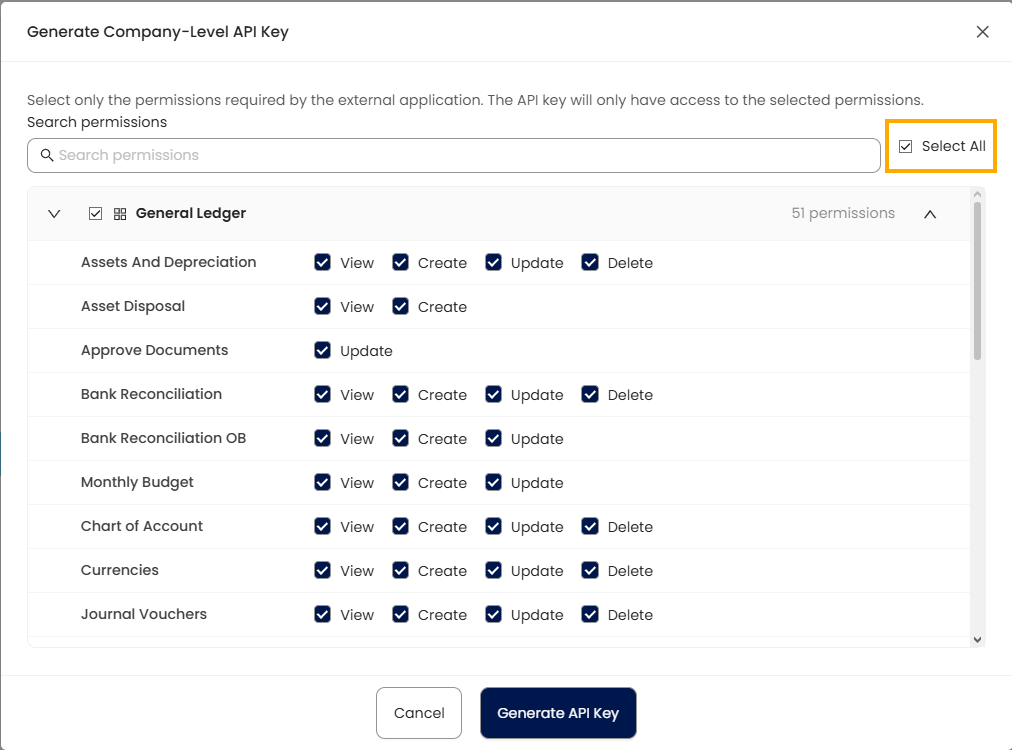
Configure the permissions required by the external application.
The permission configuration screen provides the following options:Search Permissions – Search for specific permissions.
Select All – Select or clear all available permissions.
Module-Level Checkboxes – Select or clear permissions for an entire module.
Expand/Collapse Arrows – Expand a module to view and select individual permissions.
Available modules include General Ledger, Customer, Supplier, Sales, Purchase, Inventory, Tax, Reports, and applicable localized modules.
Note: All permissions are selected by default. Review the permissions and deselect those that the external application does not require.Click Generate API Key on the permission configuration screen.
Confirm the action by clicking Generate API Key again.
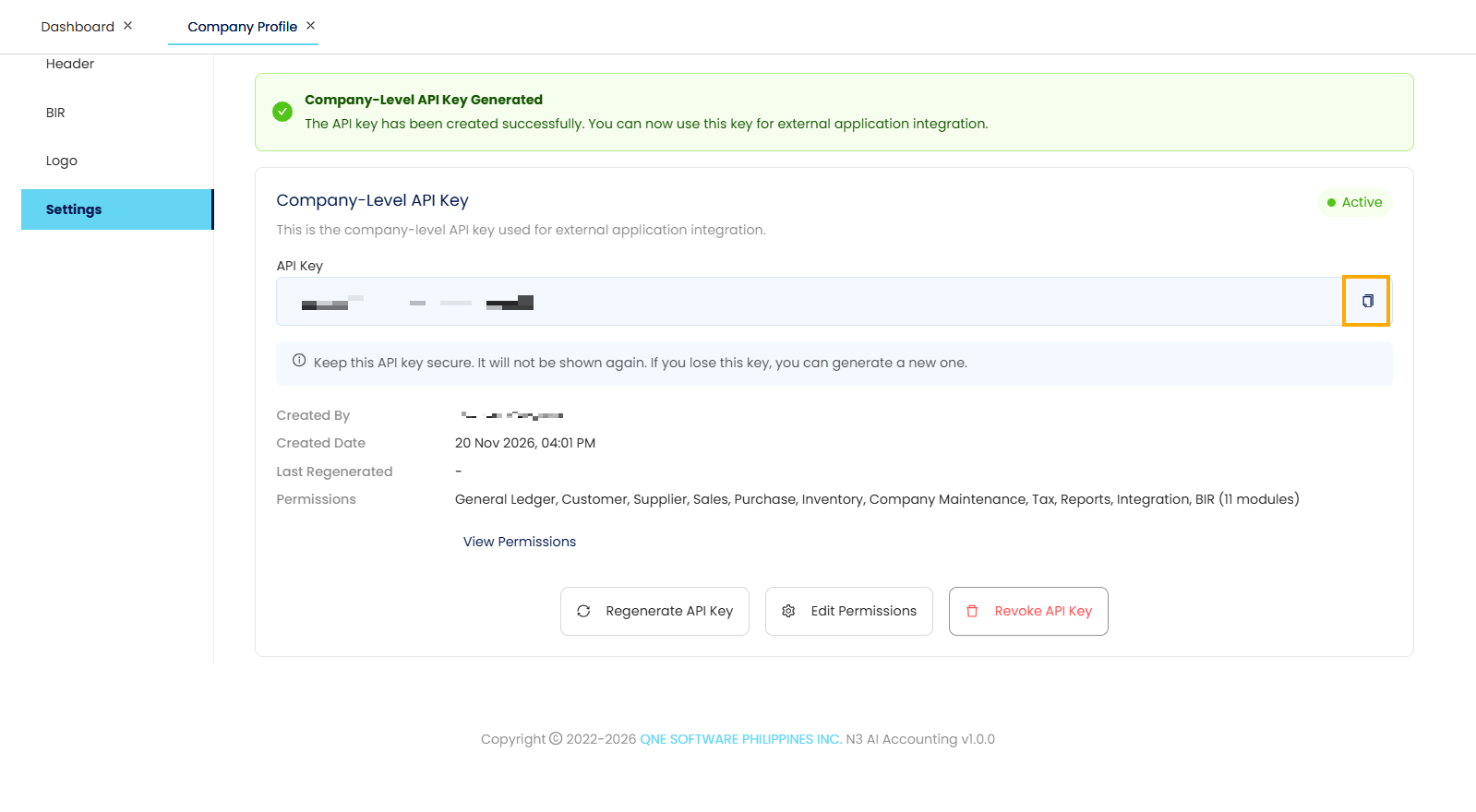
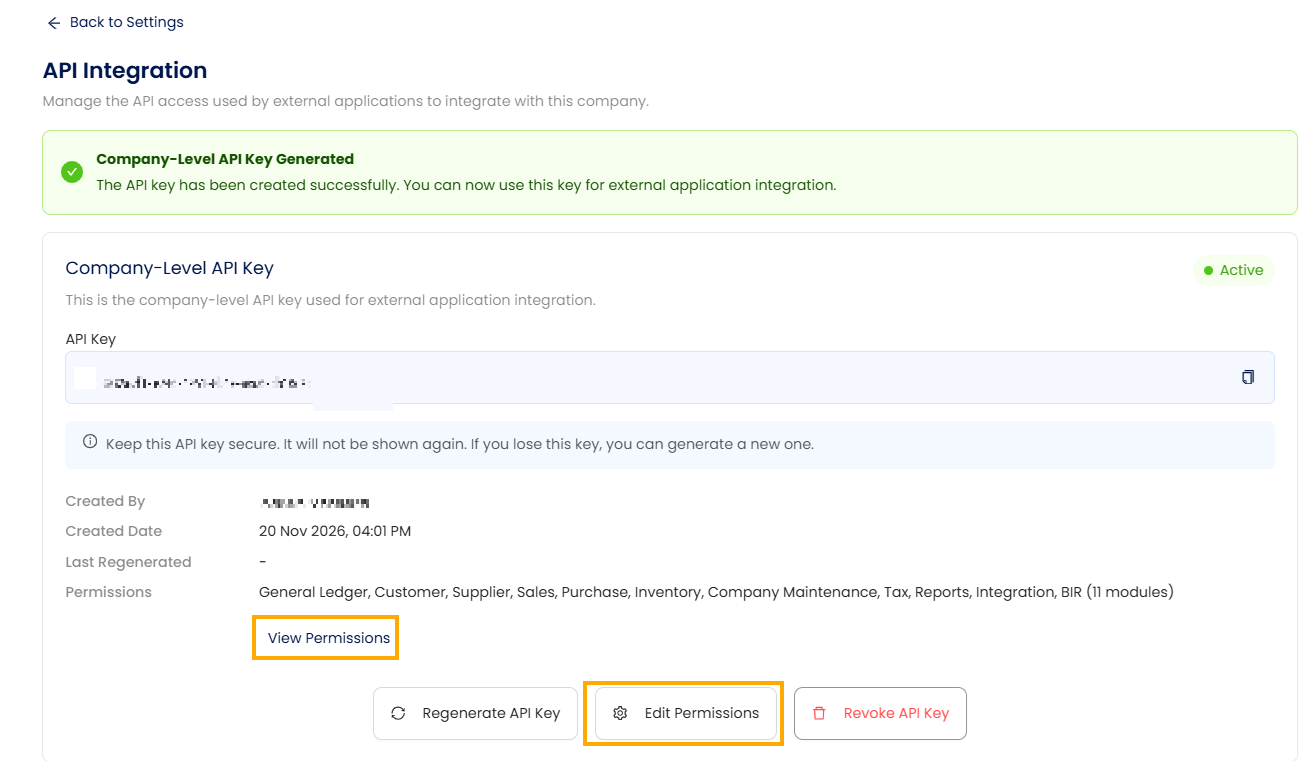
Verify that the Company-Level API Key Generated confirmation appears and that the key status is Active.
Click the copy icon to copy the generated API key and store it securely.
Warning: The full API key is displayed only once. It cannot be retrieved after leaving the page. Copy and securely store the key before navigating away.
B. Manage a Company-Level API Key
Navigate to Company > Company Profile > Settings.
Locate Company-Level API Key and click Configure.
Select the required management action.
View Permissions
Review the modules and access rights assigned to the active API key.
Edit PermissionsUpdate the selected modules or individual permissions.
Save the changes.
The updated permissions apply to subsequent API requests.
Regenerate API Key
Select the option to regenerate the API key.
Confirm the regeneration when prompted.
Verify that a new API key is generated.
Copy and securely store the new key immediately.
Update the API key configured in connected external applications.
Verify the Last Regenerated timestamp.
Warning: Regeneration immediately invalidates the previous API key. Existing permission configurations are retained, but connected external applications must be updated with the new key to continue using the integration.
Revoke API KeySelect the option to revoke the API key.
Confirm the revocation when prompted.
Verify that the key status changes to Revoked.
Note: A revoked API key cannot be reactivated. An authorized user can generate a new API key if access is needed again.
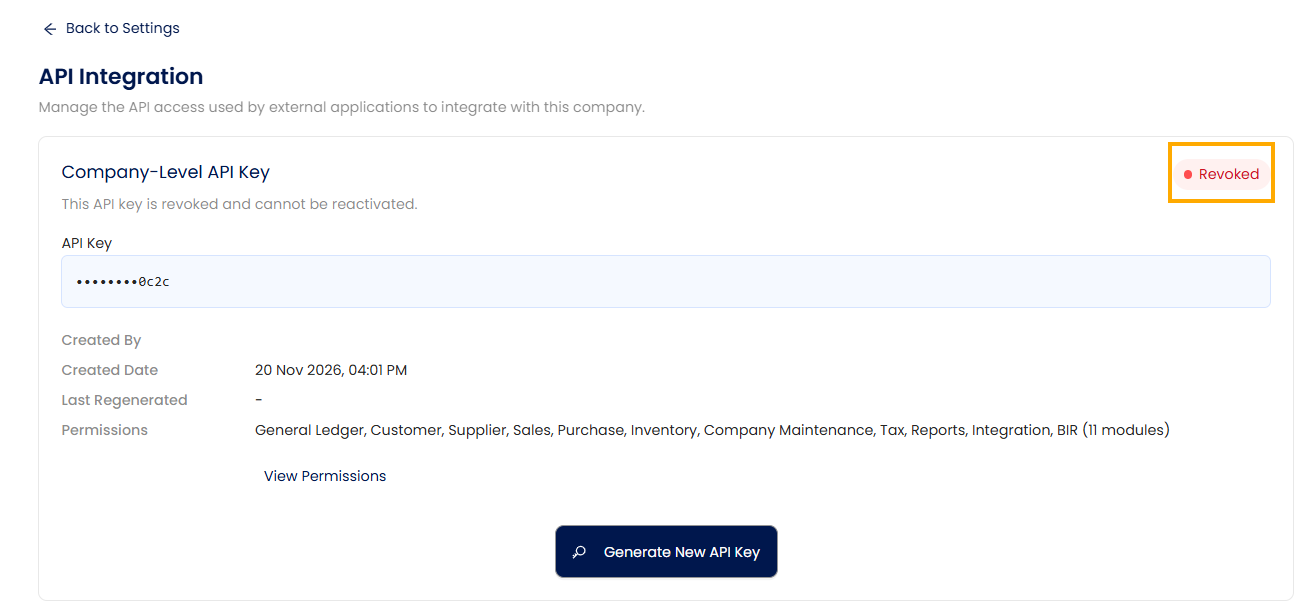
Verify that the API key status and assigned permissions reflect the intended changes.
Application:
External Application Integration – Provide an authentication credential for connecting external applications to company data and functions through the API.
Automated Data Retrieval – Allow authorized external applications to retrieve company data through assigned API permissions.
Controlled Data Access – Limit external application access to the modules and permissions required for the integration.
Integration Maintenance – Update permissions when the data access requirements of an external application change.
Credential Replacement – Replace an existing API key when regeneration is required and update the connected applications.
Access Termination – Revoke an API key when an external application no longer requires access.
System Scope: QNE AI Cloud Accounting / N3 AI Accounting
Was this article helpful?
That’s Great!
Thank you for your feedback
Sorry! We couldn't be helpful
Thank you for your feedback
Feedback sent
We appreciate your effort and will try to fix the article